FAQ
Frequently asked questions and answers.
Please reinstall the USB driver.
Plug the USB downloader into the CPU, then launch the PROBO HEX program.
After launching, swipe down and choose DRIVER DOWNLOAD.
Click "Install black USB driver," then press the INSTALL button.
If it still won't connect after install, UNINSTALL and INSTALL again.
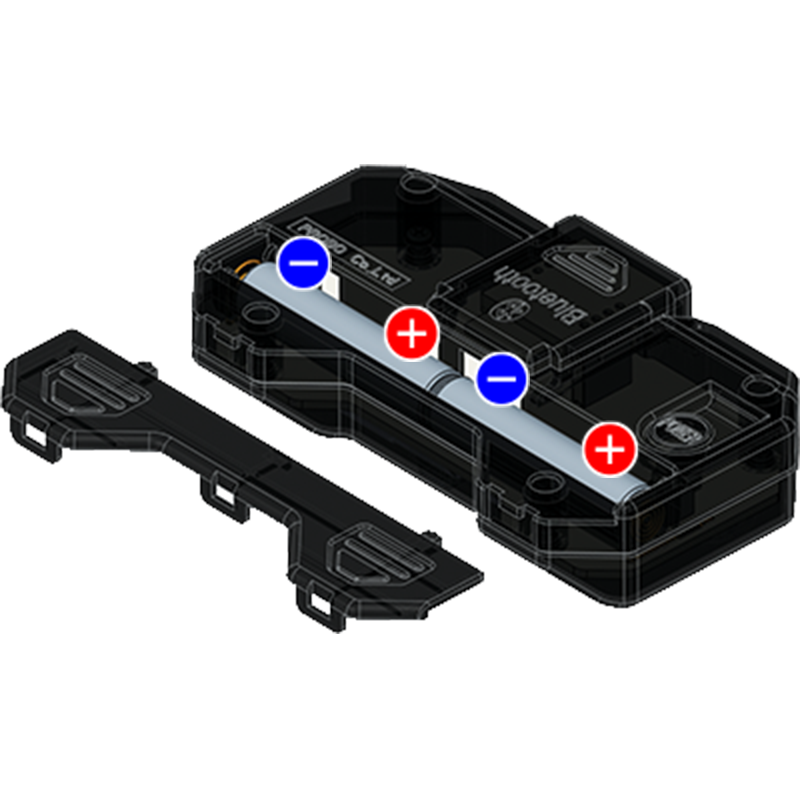
Check that the + and − battery polarity is correct.
Verify that the remote is properly paired with the robot.
If pairing fails, the LED blinks slowly.
02-1 How to pair for the first time
Power on the RF remote and CPU block, then press the pairing switches on both. The LEDs will blink rapidly as they search for each other.
02-2 Pairing complete
When the LEDs on the RF remote and RF receiver module stay on without blinking, pairing is complete. When you press the remote, check that the receiver's blue LED lights up.
02-3 Previously paired robots reconnect automatically
Once paired, a robot will automatically find and reconnect to the registered remote on power cycle. When you press the remote, check that the blue receive LED lights up.
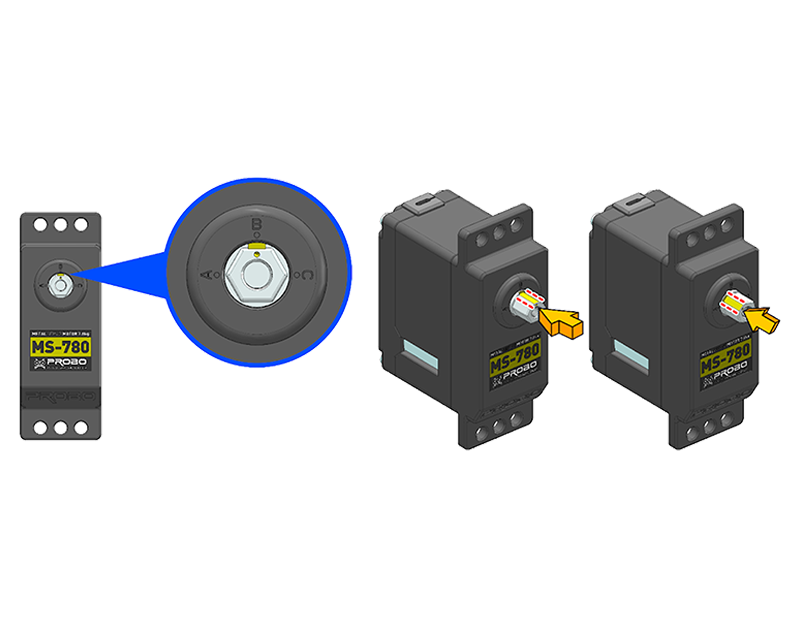
Pay attention to the angle of the slot marked in yellow when assembling.
If the angle is off, the robot won't move properly.
- Remove batteries from the battery block when not in use.
- Use alkaline batteries, not manganese.
- Don't mix used and new batteries.
Technic has completed KC Safety Certification (CB061A008-9001). Certification info is on the product package.
PROBO Technic works on Windows and Android.